Create Rescale Job
Table of contents
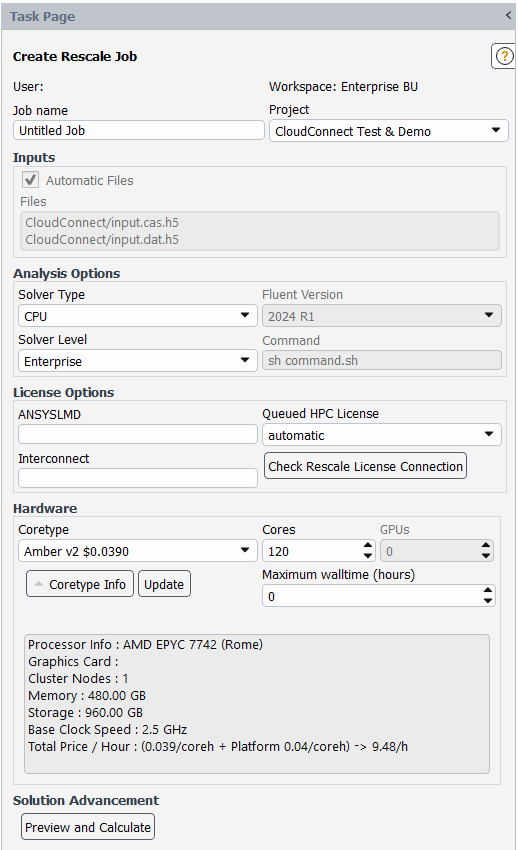
Job name
Name of the job on Rescale. The Job name can be set freely using ASCII characters. The job name is initialized to the loaded case file name without the file extension if a case file is loaded. Recognizable naming helps to distinguish between jobs.
Note that the Monitoring Job task only recognizes the most recent one from the jobs with the same name.
Project
Rescale jobs can be assigned to a project to manage internal budgets. Rescale provides a setting to enforce that the user assigns jobs to projects. If mandated to assign jobs to projects, you can do the project assignment from the Project dropdown menu. The projects are read from Rescale when the API key is checked.
Note that projects are only available on higher Rescale organization tiers. Read more about managing groups and projects in the Rescale Documentation.
Rescale Input Files
The Rescale Input Files section displays the files that will be uploaded when the Rescale job is submitted. Files Automated Journal, Current Case and Current Data are generated when the job is submitted.
The following functions are available:
- Refresh Files List updates the list of input files based on the current Fluent case and user selections.
- Review/Modify Input Files opens the Rescale Job Files panel, where the user can modify the files included in the job.
- Preview Journal opens a preview of the journal file that will be used to run the Rescale job. It is recommended that the user only reviews the journal contents and does not edit the file directly in Fluent.
Review or Modify Input Files
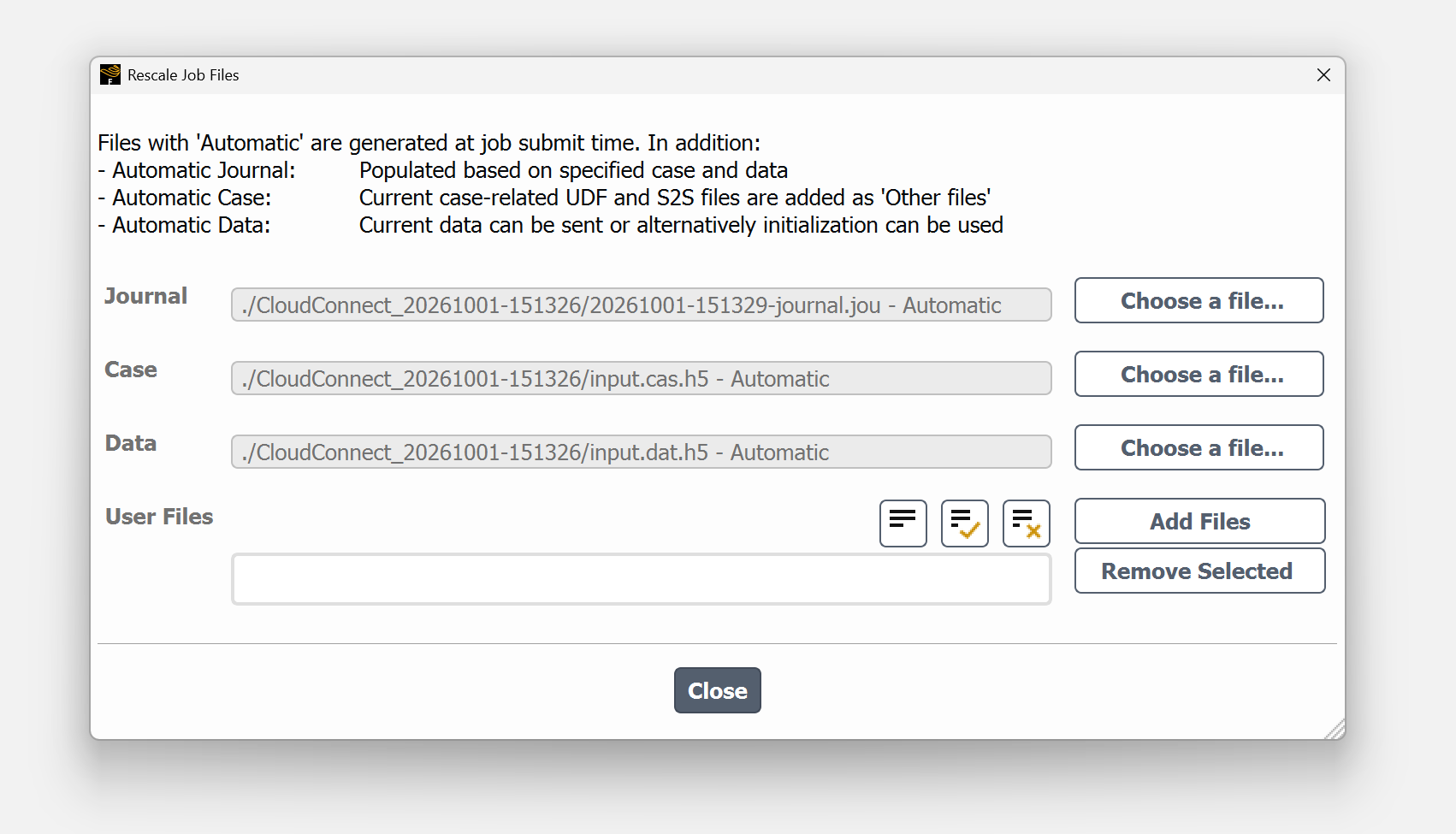
The Rescale Job Files panel allows the user to review and modify the journal, case, data, and additional user files before submitting the job.
The user can select custom files to be used for the job. Selecting custom files allows the user to submit jobs to Rescale without first opening the files in a local Fluent session. This can be beneficial when working with large case and data files. In addition, users can specify custom journal files when more advanced simulation runs are required.
Once a custom file is selected, the corresponding button text changes to Set to Automatic. The following files can be defined automatically:
- Automatic Journal: The journal file is generated at submission time based on the selected case and data files, as well as the user selections in the Job Summary panel panel.
- Automatic Case: The current Fluent case is used to create the case file that will be sent to Rescale. In addition, any UDF and S2S files associated with the case are automatically added to the user files list.
- Automatic Data: If current data is available and the user selects the initialize from current data method, the current solution data is saved to a data file and uploaded to Rescale together with the case file. The initialization method can be selected in the Job Summary panel before submitting the job.
Additionally, the user can add any number of files that will be sent to Rescale and used as input files for the job.
Analysis options
Solver type
The simulation can be executed on Rescale using the native Fluent GPU solver instead of the Fluent CPU solver. However, the native Fluent GPU solver is still experimental, and errors may occur. The job setup remains consistent for both solvers.
Solver level
The Fluent capability level for a Rescale job can be selected from the Solver Level dropdown menu. The license increments needed for this level are queued to start the Rescale job.
Fluent Native GPU Solver
When GPU is selected from the Solver Level dropdown menu, an information panel appears with a table listing all settings that will be modified when the current job setup is loaded into Fluent Native GPU Solver. The user’s responsibility is to verify that these changes do not alter the intended simulation results.
The list of selectable coretypes is restricted to four CFD-compatible GPU types when the GPU solver is selected.
The solver only considers the total number of Streaming multiprocessors (SMs) when assessing the need for HPC licenses. The table below illustrates how the number of SMs affects the required HPC. The quantity of SMs for the selected coretype is visible in the Coretype Info table.
| SMs | HPC Workgroup | HPC Packs |
|---|---|---|
| 1-40 | 0 | 0 |
| 41-48 | 1-8 | 1 |
| 49-72 | 9-32 | 2 |
| 73-168 | 33-128 | 3 |
| 169-552 | 129-513 | 4 |
| 553-2088 | 513-2048 | 5 |
Fluent Version
The Ansys version on Rescale remains unchanged from where the setup was created.
Command
The command used to execute the Rescale job is predefined.
License options
Rescale license server options need to be entered into the boxes. Rescale borrows floating licenses from your company’s license server via a proxy, so the port and address differ from your local Ansys license server. If you are unsure what the correct settings are, either login to your Rescale account, contact your manager, company IT Ansys Support Coordinator or EDRMedeso Support.
Check Rescale license connection
Once ANSYSLMD is entered, the connection to the Rescale license server can be checked with Check Rescale License Connection. The latest license setup is remembered whenever a new job is created.
Queued HPC license
If floating license type is set, there are three options for how to wait for HPC licenses in Rescale. One can either queue HPC licenses and HPC packs or select the automatic option. If HPC licenses or HPC packs are selected, but the company’s license bundle does not have that type of license, only the solver licenses are queued. Insufficient licenses cause work to stop with an error message. The automatic option queues HPC licenses or HPC packs or both, depending on what is in the license bundle.
Hardware
Configure the cloud hardware used for your Rescale job.
Useful links:
- Hardware Recommendations FAQ
- Cloud Computing Infrastructure for HPC
- Detailed CPU and GPU hardware information
Coretype
The coretype can be selected from the Coretype dropdown menu. Different coretypes provide different amounts of memory per core, storage available on a node during the job, network I/O performance, pricing, and other features.
When a CPU solver type is selected, the user can choose a coretype from two lists: Favorites and All. The All list contains all available Rescale coretypes.
The coretypes shown in the Favorites list can be changed in the settings, where the differences between the coretypes can also be reviewed.
When a GPU solver is selected, ANSYS Fluent compatible Rescale GPU coretypes are listed.
Cores
The number of cores to be used in Rescale is set in the Cores spinbox. The value will be updated to match settings for the specific coretype after pressing enter or up/down arrows. Note that different coretypes have different numbers of cores available.
GPUs
When the GPU solver is selected, the desired hardware configuration can be determined using both the counts of cores and GPUs.
Maximum walltime
Maximum walltime refers to maximum solution time. The solution will be stopped in Rescale if the time is reached. Walltime should be long enough for the job to be completed.
On Demand
Fluent CloudConnect supports On-Demand-Priority and On-Demand-Economy Rescale pricing options. For an explanation of Rescale pricing, see the Rescale Documentation.
On Demand Priority runs without interruption, while Economy is cheaper but may queue and be stopped and restarted. Economy is not recommended for longer runs.
Update hardware
The Update button fetches the latest coretype pricing information and updates the coretype list.
Preview and Calculate
Pressing Preview and Calculate validates the job configuration and displays a warning or error if any of the following conditions are not met:
- A case file is defined.
- A connection to the license server can be established (when using floating licenses and license checks are enabled).
- The hardware settings are valid.
- Sufficient HPC licenses are available on the license server (when using floating licenses and license checks are enabled).
- The maximum wall time is greater than 0.
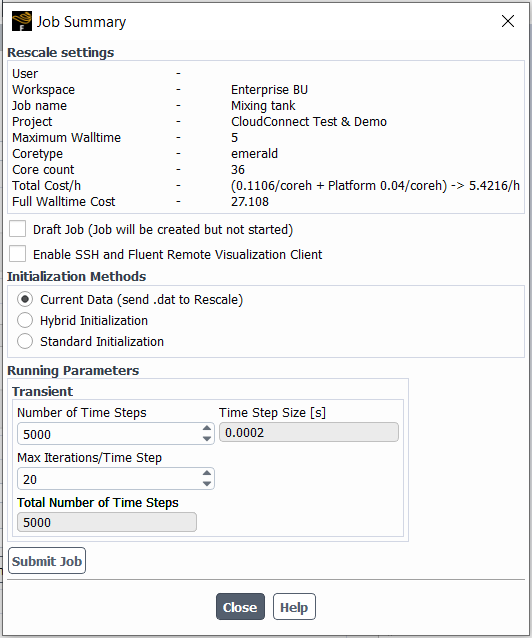
The job can still be submitted to Rescale even if the license server connection fails or there are not enough available HPC licenses. Once all checks pass, or the license-related warnings are accepted, a panel similar to the one shown below will appear.
Rescale settings
A quick summary of calculation settings. Pricing in Rescale is divided into coretype specific price and platform specific price, which are both calculated based on the total number of cores and final wall time.
Draft job
When the Draft Job option is selected, the Rescale job will be created and files uploaded, but the calculation will not be started. Afterwards, you can go to the Rescale web page, edit the job, upload more files, and submit the job.
Enable SSH and Fluent Remote Visualization Connection
When the Enable SSH and Fluent Remote Visualization Connection is selected, the run script sent to Rescale is edited to run the job with the possibility to use SSH and Fluent Remote Visualization.
The SSH key pair must be created and the public key provided on the Rescale web page. These can easily be created from the Settings task page. Detailed instructions can be found in the Job SSH access chapter.
The public key and CIDR Rule are checked to validate that the SSH access is correctly set when the Enable SSH and Fluent Remote Visualization Connection is clicked. The check box is automatically unchecked if the access cannot be confirmed.
Initialization method
Select which initialization method is used. Only the current data method saves and uploads the .dat file to Rescale. Available options are:
- Current data
- Hybrid initialization
- Standard initialization
Only the method of initialization is selectable. Reference frame and initial values should be verified from the Solution Initialization task page. The settings from the Solution Initialization page are saved with the data file and uploaded to Rescale.
If a user-defined data file is specified in Rescale Input Files, it will be used for initialization and the initialization method cannot be selected.
Running parameters
From the Running Parameters, one can review and edit some of the time advancement settings:
- Steady Case - Number of Iterations
- Transient Case - Number of Time Steps and Maximum number of iterations per time step
A good practice is to verify the time advancement settings from the Run Calculation task page, as only some of them are shown in the summary. Additionally, if periodic or frequency-based methods are used time stepping parameters can only be specified from the Run Calculation task page. The settings from the Run Calculation page are also saved with the data file and used in the Rescale calculation.
Submit job
Pressing Submit Job starts the job submission process. Fluent will display a small pop-up window, which gets updated when each task is completed. Rescale job creation will be aborted if the pop-up window is closed.