Getting Started
Table of contents
- Step 1 - Register to Rescale
- Step 2 - Install Fluent CloudConnect
- Step 3 - Load CloudConnect license file
- Step 4 - Set the Rescale API key in CloudConnect
- Step 5 - Create a Rescale job
- Step 6 - Configure Ansys license proxy settings
- Step 7 - Hardware Settings
- Step 8 - Submit a job to Rescale
- Step 9 - Monitoring Rescale
- Optional
Step 1 - Register to Rescale
Ask your manager or IT to get invited to your company’s Rescale account. Continue the registration via the email link as illustrated in the image below.
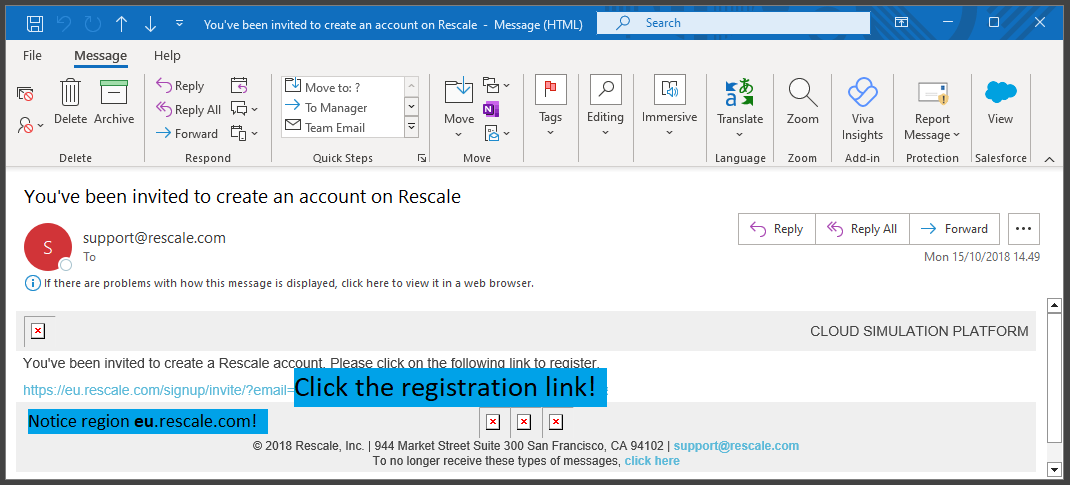
How to invite new users as an admin to Rescale
Step 2 - Install Fluent CloudConnect
Fluent CloudConnection installation files can be downloaded from downloads page.
Installation files are provided as a compressed .zip file. Extract the contents to the desired installation location.
Fluent CloudConnect is a ribbon extension for the Fluent GUI. To enable the extension, either run the batch .bat file or the journal .jou file from the installation package.
Do not save extracted CloudConnect installation files to any directory with the space in its name. Spaces in the file path cause problems in use.
The extracted files must be available while using Fluent CloudConnect, do not edit or delete them after installation.
A - Batch file
In the extracted installation folder, double-click win_install_to_fluent.bat. A new ribbon item, CloudConnect, will be added to the next Fluent session. To uninstall CloudConnect, double-click win_remove_from_fluent.bat.
If Windows displays a security warning or blocks the file from running, right-click the .bat file, select Properties, enable Unblock (if available), and click Apply. You may also need to confirm any Windows security prompts before the script can run.
After the installation completes, start a new Fluent session and verify that the CloudConnect ribbon is available.
B - Journal File
If you are unable to use the provided .bat files, Fluent CloudConnect can also be installed or uninstalled using journal files.
To install:
- Open ANSYS Fluent and, from the File menu, select Read → Journal.
- Navigate to the extracted folder containing the Fluent CloudConnect installation files.
- Select
install_CloudConnect.jou. - CloudConnect will be installed, and the CloudConnect tab will be added to the Fluent ribbon.
To uninstall, use uninstall_CloudConnect.jou instead. Fluent must be restarted for the CloudConnect tab to be removed from the ribbon.
Step 3 - Load CloudConnect license file
To use Fluent CloudConnect, you must have a valid license key installed on your computer.
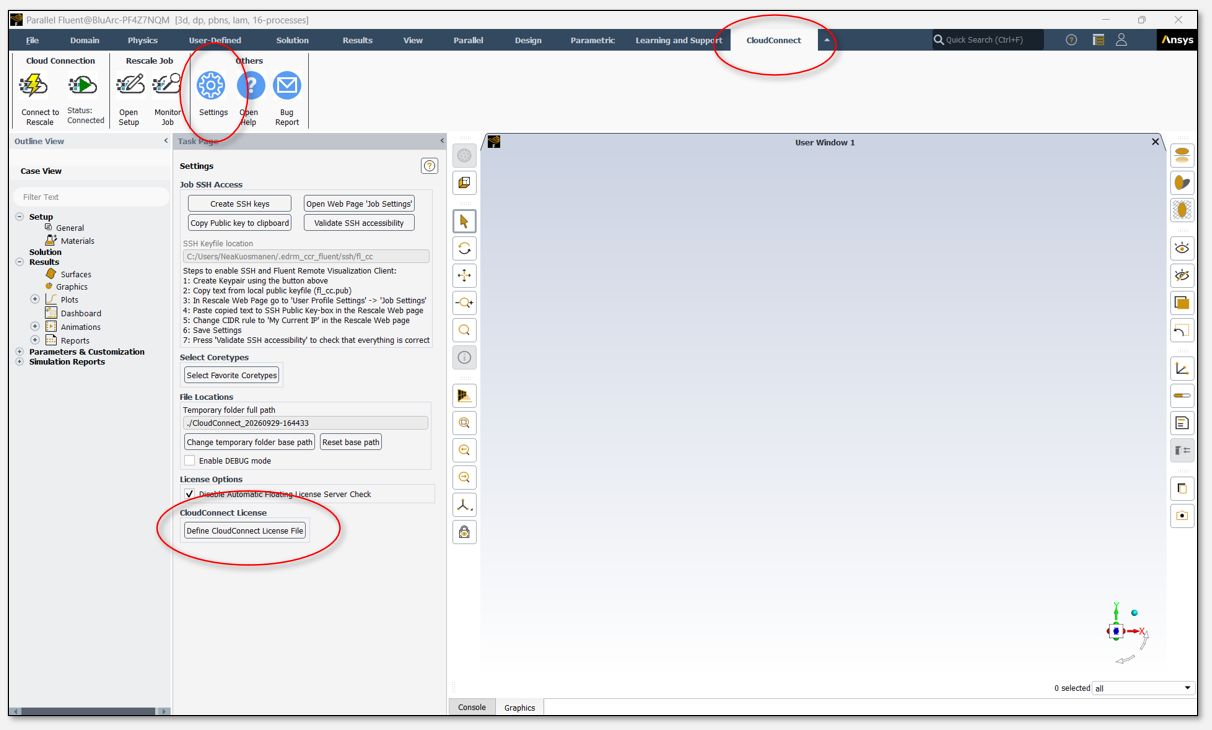
Your company’s license key is provided to you by EDRMedeso. To define the CloudConnect license key file, go to CloudConnect ribbon and navigate to Settings → CloudConnect License. Click Define CloudConnect License File button and select the file you received from EDRMedeso.
Step 4 - Set the Rescale API key in CloudConnect
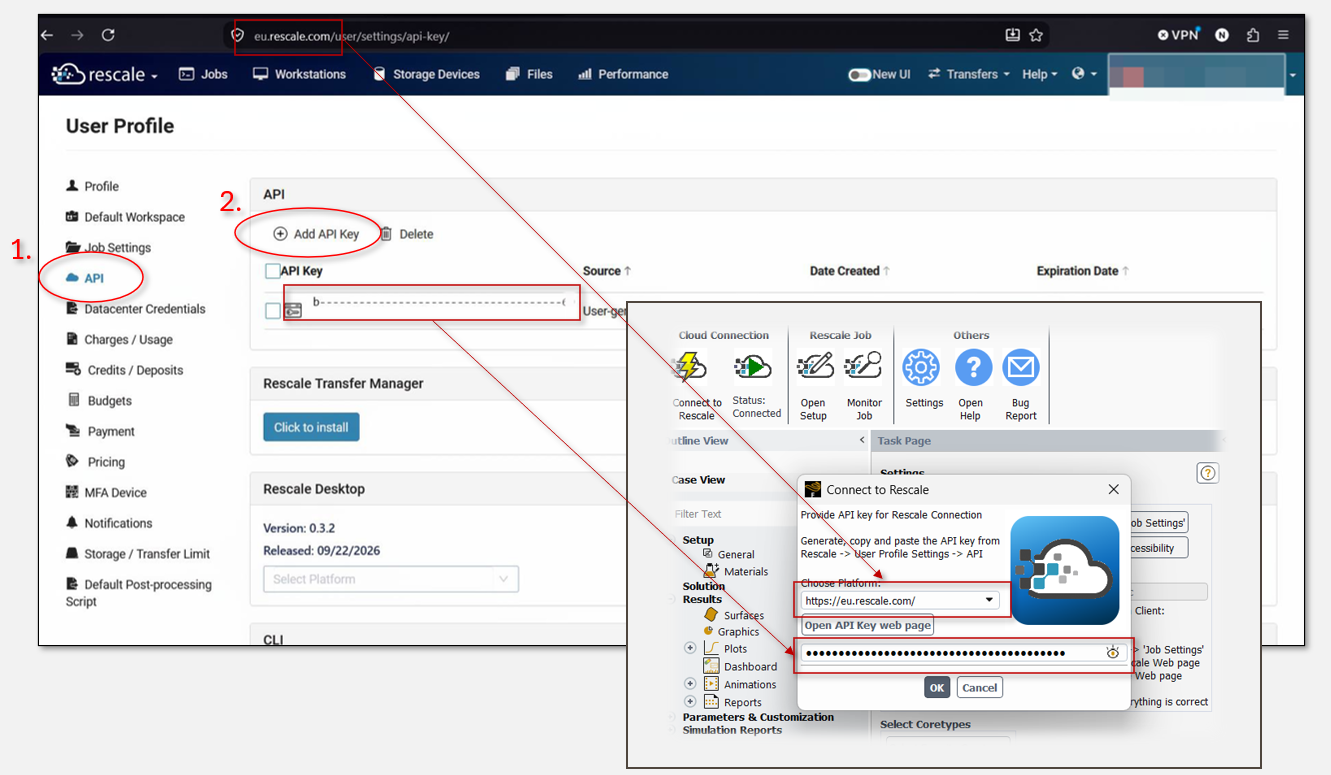
CloudConnect authenticates the user to Rescale with an API key. The API key is a computer-generated personal secret that only you personally should know and thus Rescale can use it to verify your identity. It is different from your Rescale login credentials.
To obtain your API key you must login to your Rescale account and generate one from a menu under your user profile settings. Fluent CloudConnect reads the API key through the Connect to Rescale button in the CloudConnect toolbar. After the first time use, the API key is stored under your Windows user folder and remembered in the next sessions.
Step 5 - Create a Rescale job
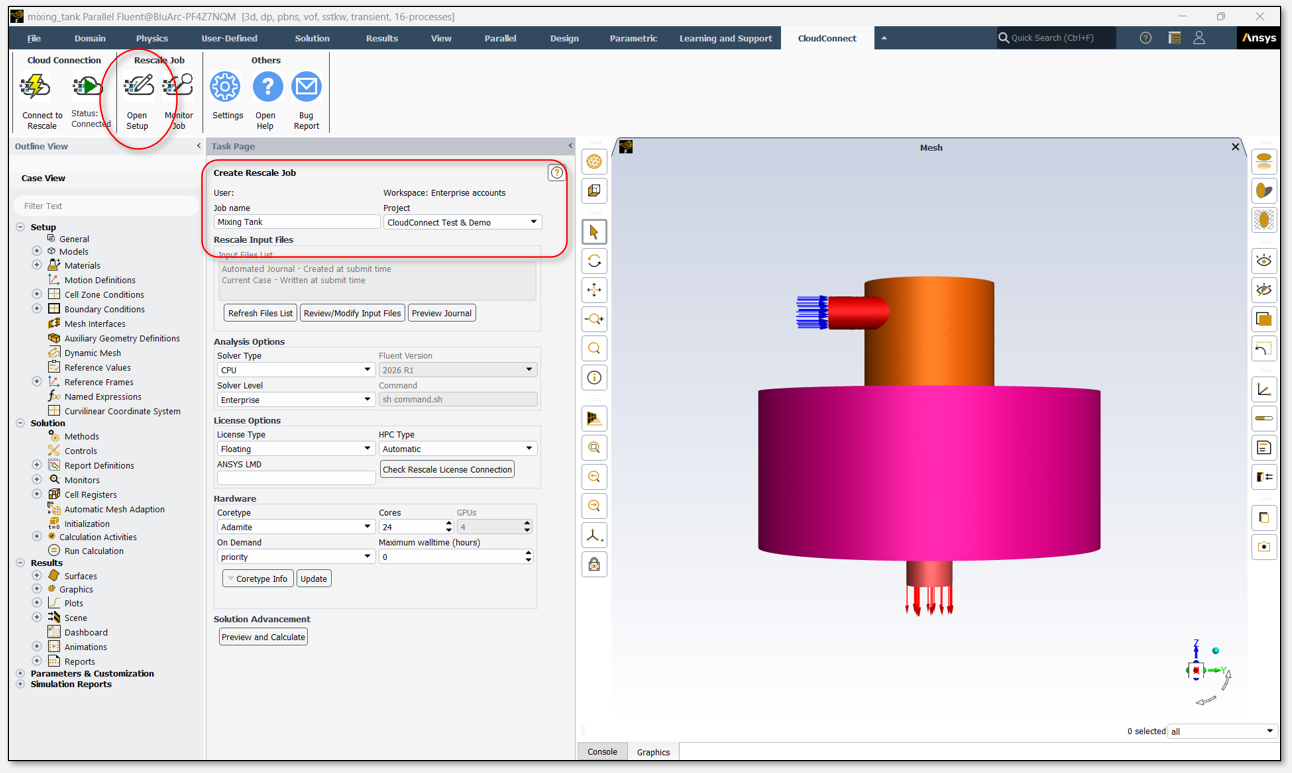
After Rescale connection is verified with the API key, Create Rescale job task page will open. Alternatively, Create Rescale job task page can be opened by clicking Open Setup from the CloudConnect ribbon tab.
Now you can specify the job name and project if needed. Some companies wish to track cloud consumption on a project level. This is possible by assigning the job to a project.
The case setup and solution settings must be defined before submitting the job. By default, CloudConnect reads the currently open case.
Step 6 - Configure Ansys license proxy settings
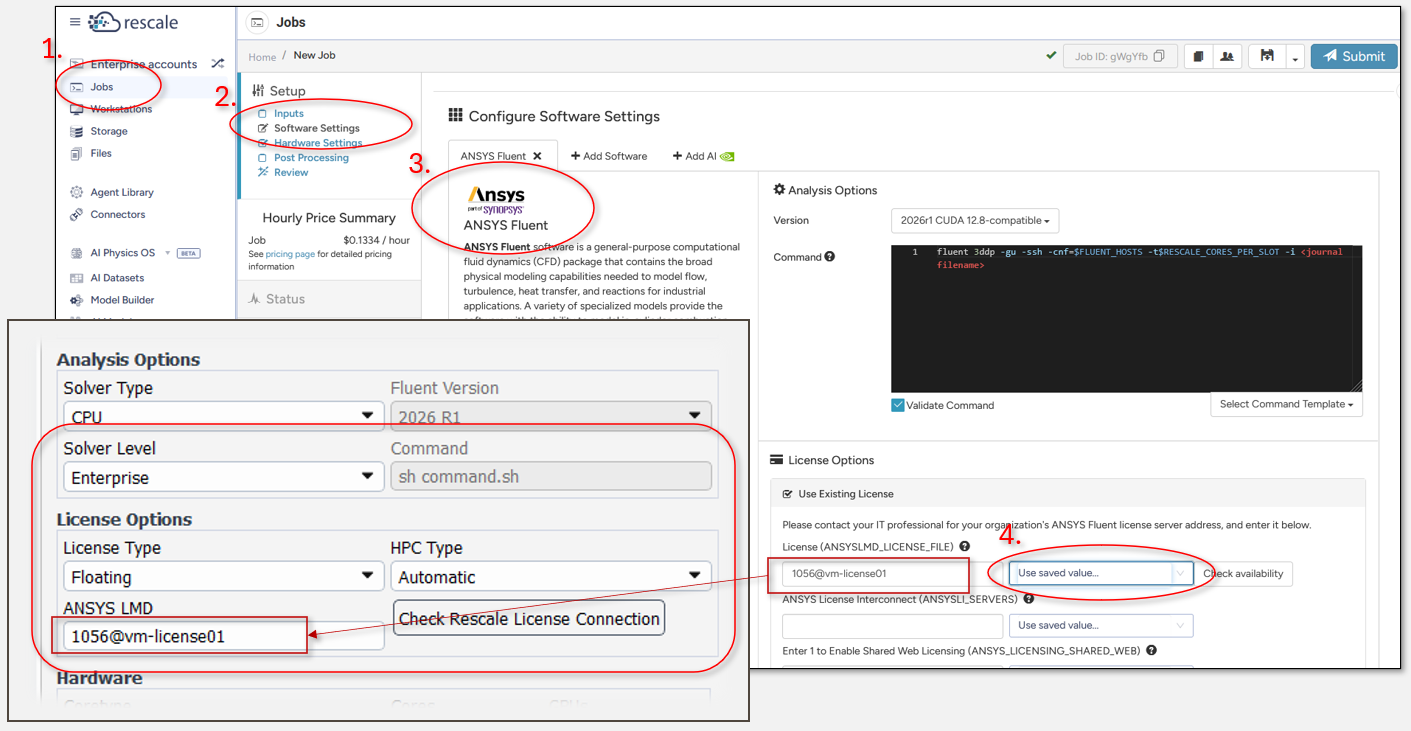
License Options defines which ANSYS license is used in Rescale to run the simulation.
When using floating licenses, the ANSYS license proxy used by your company with Rescale must be specified. This license configuration may differ from the one used on your local machine. To find the proxy configuration used by your company, log in to your Rescale account through a web browser, create a new job, navigate to the software settings, select ANSYS Fluent, and copy the license configuration text as shown in the image below.
Your job will remain in the Rescale queue until the required licenses become available. You can either select a specific HPC license type from HPC Type dropdown or allow CloudConnect to automatically detect the licenses available in your license pool.
Additionally, you may need to switch the Solver Level from Enterprise depending on which ANSYS licenses are available within your company.
Step 7 - Hardware Settings
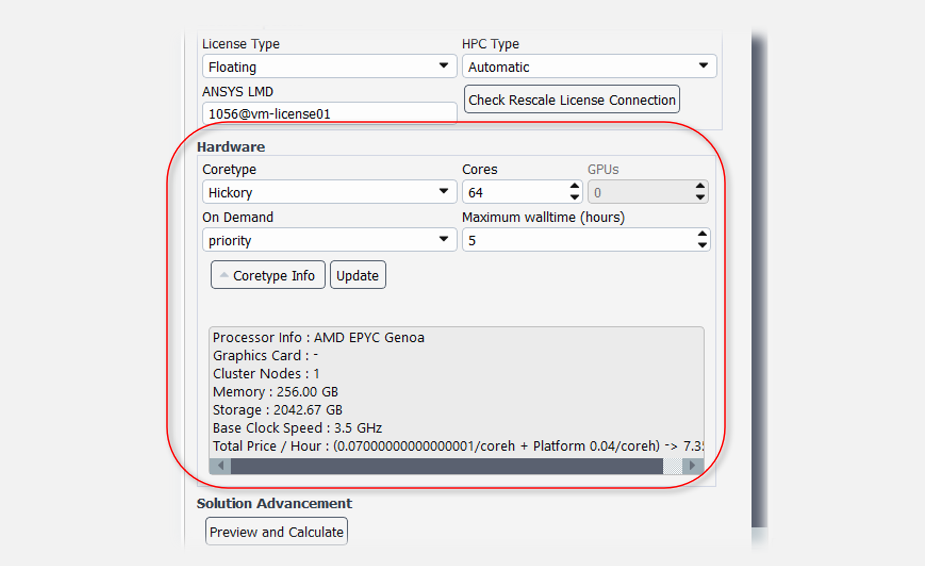
Below the license options, you can specify the core type, number of cores, and maximum walltime for the Rescale job.
Core types are available in the Coretype dropdown menu. There are two sections: Favorites and All. By default, the Favorites list is empty. Users can add favorite core types and compare the hardware properties of different core types from the Settings.
Hardware specifications for the currently selected core type can also be viewed using the Coretype Info button. Note that not all core types are suitable for CFD simulations
Some core types recommended for CFD-related jobs are:
- Hickory (suitable for small to large cases)
- Hematite (large cases, minimum core count 64)
- Luna (medium cases, minimum core count 24)
- Emerald (small cases, minimum core count 1)
For optimal parallel performance, aim for a mesh-to-core ratio of 30,000-50,000 cells per core in most cases.
The number of cores used in Rescale is specified in the Cores spin box. The selected value is automatically adjusted to match the requirements of the chosen core type.
Maximum Walltime defines the maximum runtime of the simulation. The Rescale job will be terminated when this limit is reached, and any unsaved results will be lost. Therefore, the walltime should be set high enough to allow the simulation to complete.
The GPU count is also displayed. This value is editable when the native Fluent GPU solver is selected.
Step 8 - Submit a job to Rescale
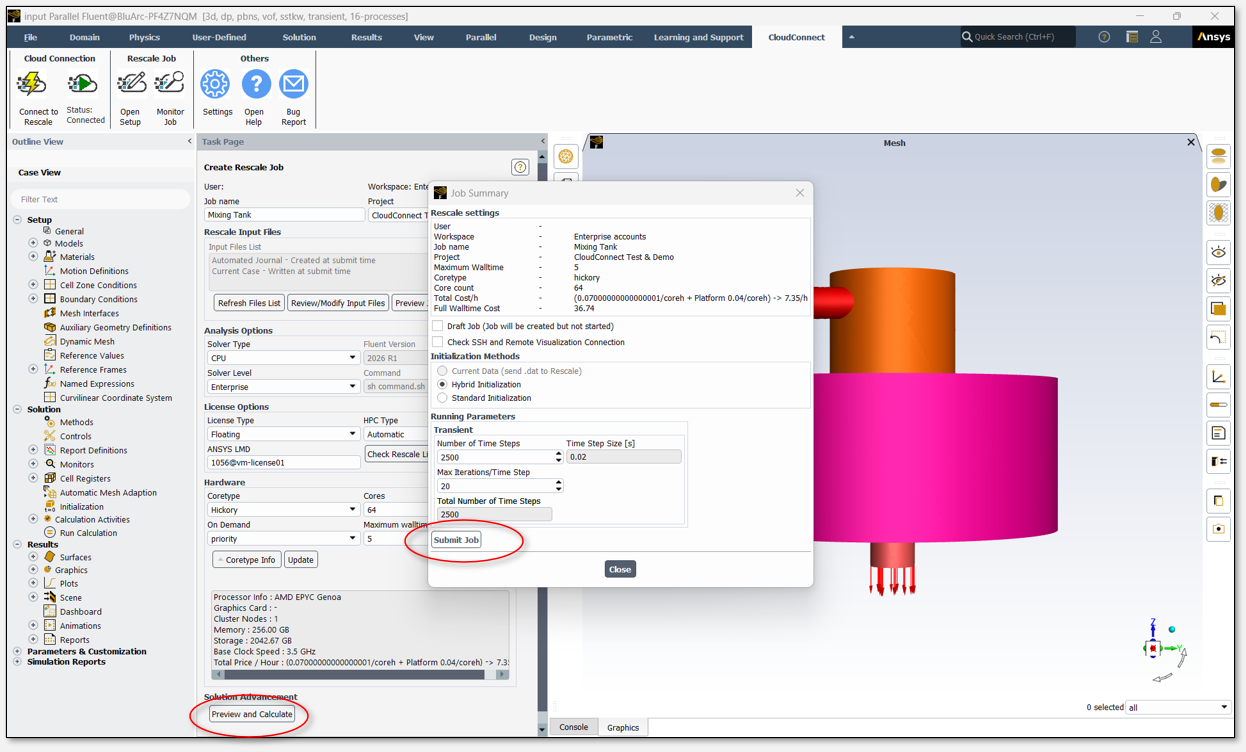
Preview and Calculate opens a panel with a quick summary of Rescale job settings, initialization method and run parameters. Additionally, there are options to create a draft job and enable SSH and Fluent Remote Visualization Connection.
It is recommended to verify the time advancement settings on the Run Calculation task page, as only some of them are shown in the summary. The simulation will run according to the iteration and time-step settings defined on the Run Calculation page. Additionally, the reference frame and initialization settings should be verified on the Solution Initialization task page.
Pressing Submit Job starts the job submission process. Fluent will display a small pop-up window that is updated as each task is completed.
While files are being uploaded to Rescale, a Python terminal window will appear. The upload process can be stopped by closing the terminal window.
Step 9 - Monitoring Rescale
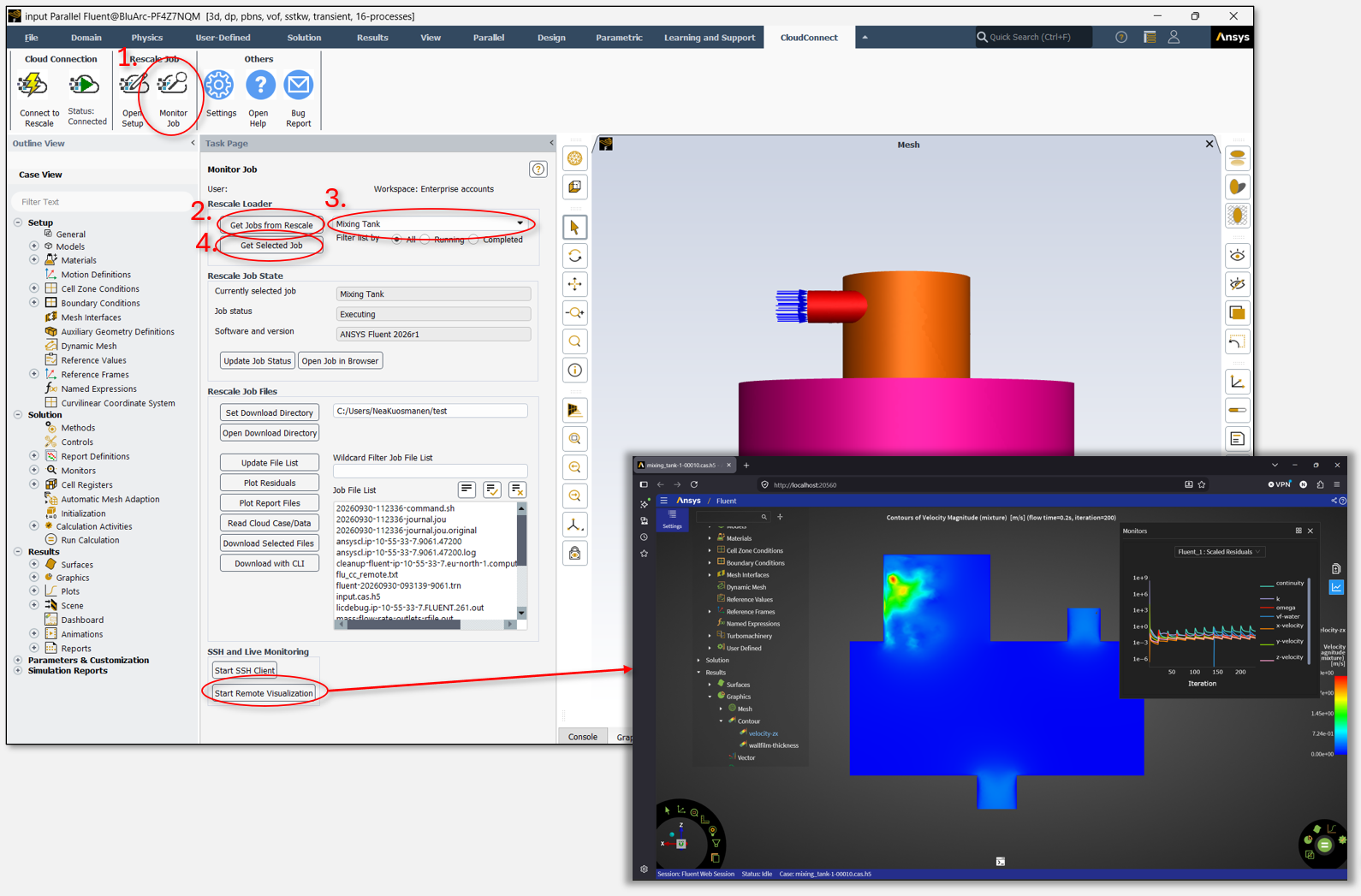
Jobs Monitoring and downloading Rescale jobs can be done from the Monitor Job task page. To retrieve a list of jobs associated with your account, click Get Jobs from Rescale. Pressing Get Selected Job loads the currently selected job from the dropdown menu.
You can check the job status, plot residuals and reports, open selected case and data files, and download files related to the selected job.
Additionally, if SSH and the Fluent Remote Visualization Connection were enabled during job submission, you can connect to a running job and interact with it from your local computer by pressing Start Remote Visualization.
If the job is still running, you may need to refresh the file list to view newly generated files.
Optional
How to invite new members to Rescale as an admin
If you’re an admin to your company’s Rescale account, you might be asked to invite new members to the platform. This can be done easily from the web browser.