Settings
Table of contents
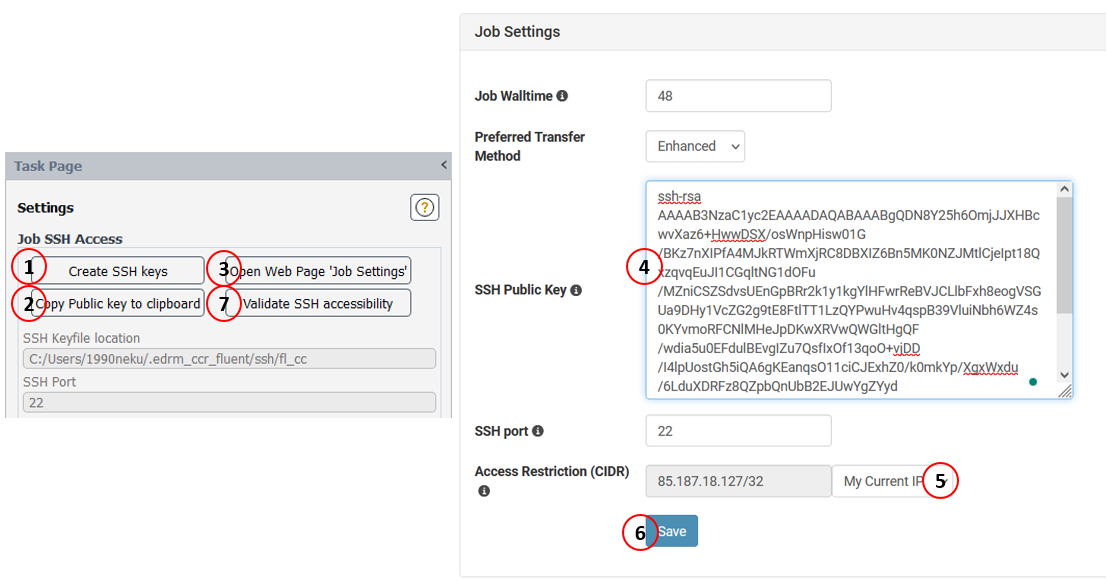
Job SSH access
To be able to utilize SSH tunnel connection between the local workstation and Rescale cluster, you need to create SSH key pair and copy the public key to your Rescale profile. The public and private SSH keys should be considered a personal secret, which should not be shared with others. There is never a need to provide the private key outside the local environment.
The key generation is automated and easy to do by following these seven steps:
- Create key pair by clicking the Create SSH keys button.
- Copy text from local public key file
%userprofile%\.edrm_ccr_fluent\ssh\fl_cc.pub. The text is automatically copied by clicking the Copy Public key to clipboard button. - In Rescale Web Page go to User Profile Settings → Job Settings or open the rescale Rescale job settings page by clicking Open Web Page ‘Job Settings’ button.
- Paste copied text to the SSH Public Key box on the Rescale web page.
- Change the CIDR rule to My Current IP in the Rescale web page.
- Save the Rescale job settings.
- Press Validate SSH accessibility to check that everything is correct.
Select favorite core types
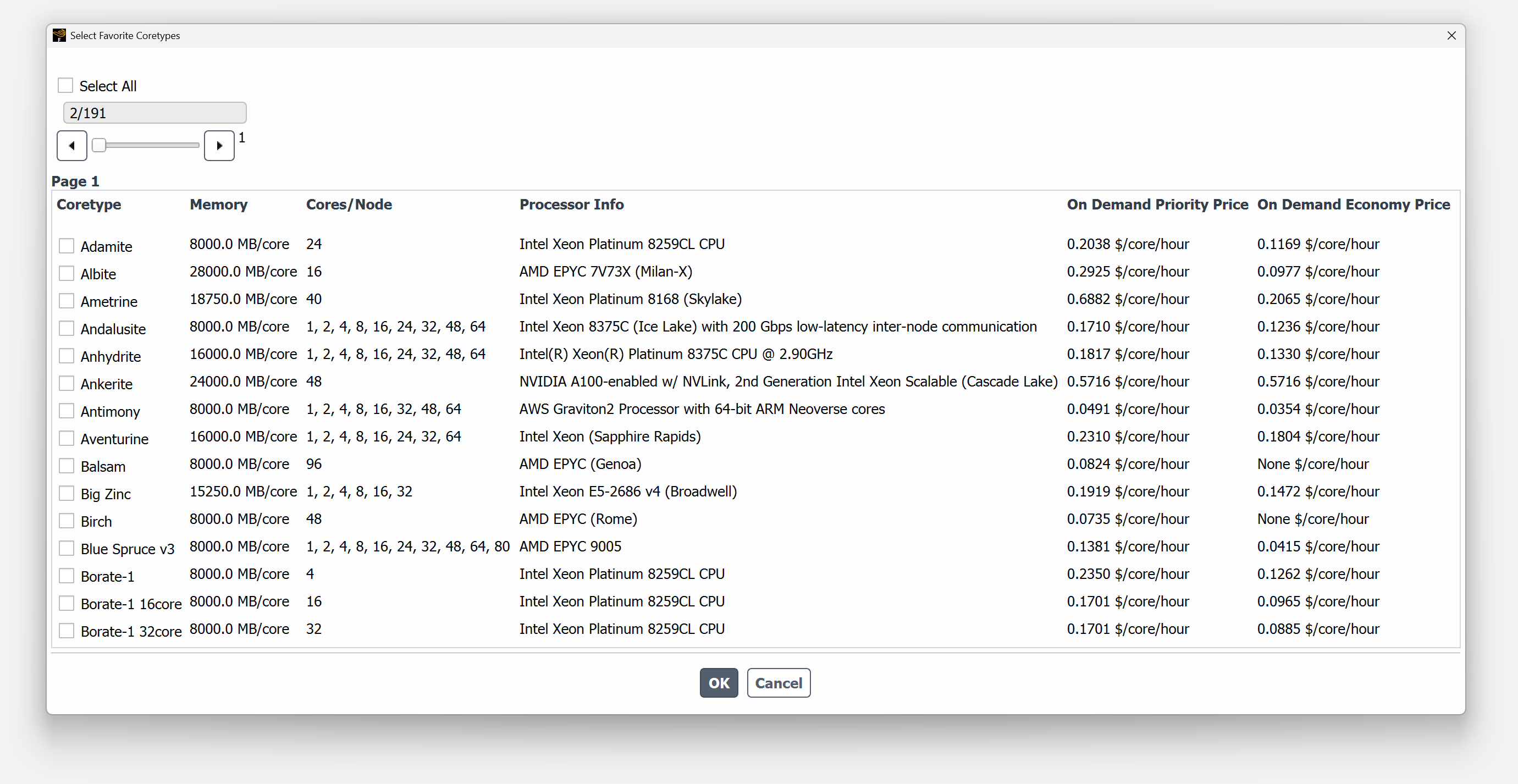
The Select Favorite Coretypes button opens the Select Favorite Coretypes panel. Core names, memory, minimum core counts, processor types, and prices are presented in the panel. From the panel, the user can select which core types are shown in the Favorites section of the Coretype dropdown menu on the Create Rescale Job page.
File locations
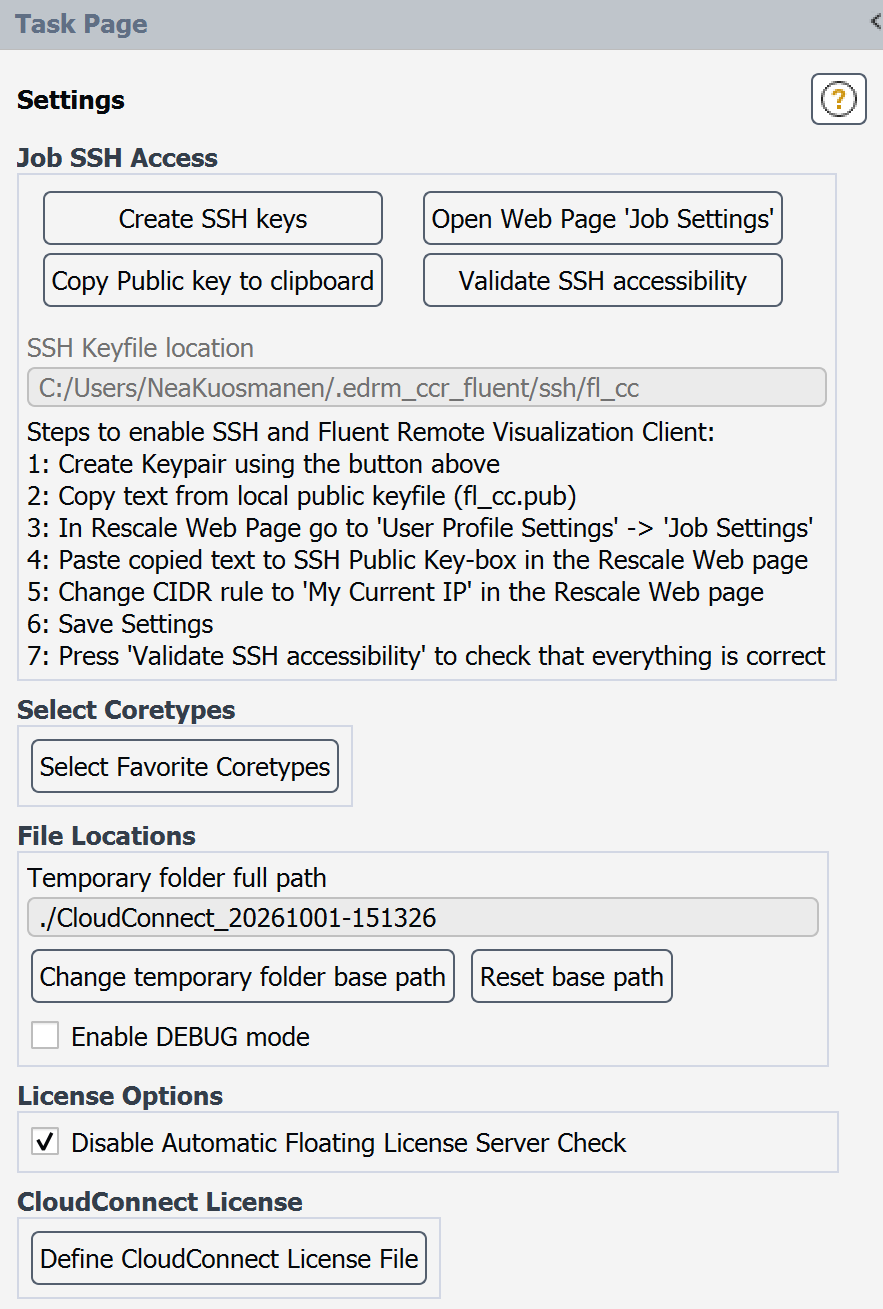
The user can specify the location where temporary files are saved when submitting a job to Rescale.
DEBUG mode prints additional information to the console and is helpful for diagnosing unexpected behavior.
License options
The floating license connection is checked when the user presses the Preview and Calculate button. A delay in connecting to the license server may significantly slow down the opening of the job summary pane. In such cases, it may be preferable to disable the automatic floating license server check.
If the automatic check is disabled, it is recommended that the user ensures Ansys LMD is configured correctly.
CloudConnect License
Define CloudConnect License File allows the user to select a .lic file and automatically save it as %appdata%\EDRMedeso_Apps\EDRMedeso_Apps.lic. The content of the license file is statically verified, but the license data is not validated against the licensing server.
The Fluent CloudConnect license key from that file will be used the next time Connect to Rescale is checked.
More more CloudConnect licensing.